 Choreless
Splitmark
Split a PDF into separate invoices, named from their own text
Accounting software, banks and payroll systems often export a single PDF with dozens or hundreds of documents stuck together. Splitting it by page ranges works until the documents have different lengths, and then every file still has to be renamed by hand.
 Splitmarkby Choreless
How it works
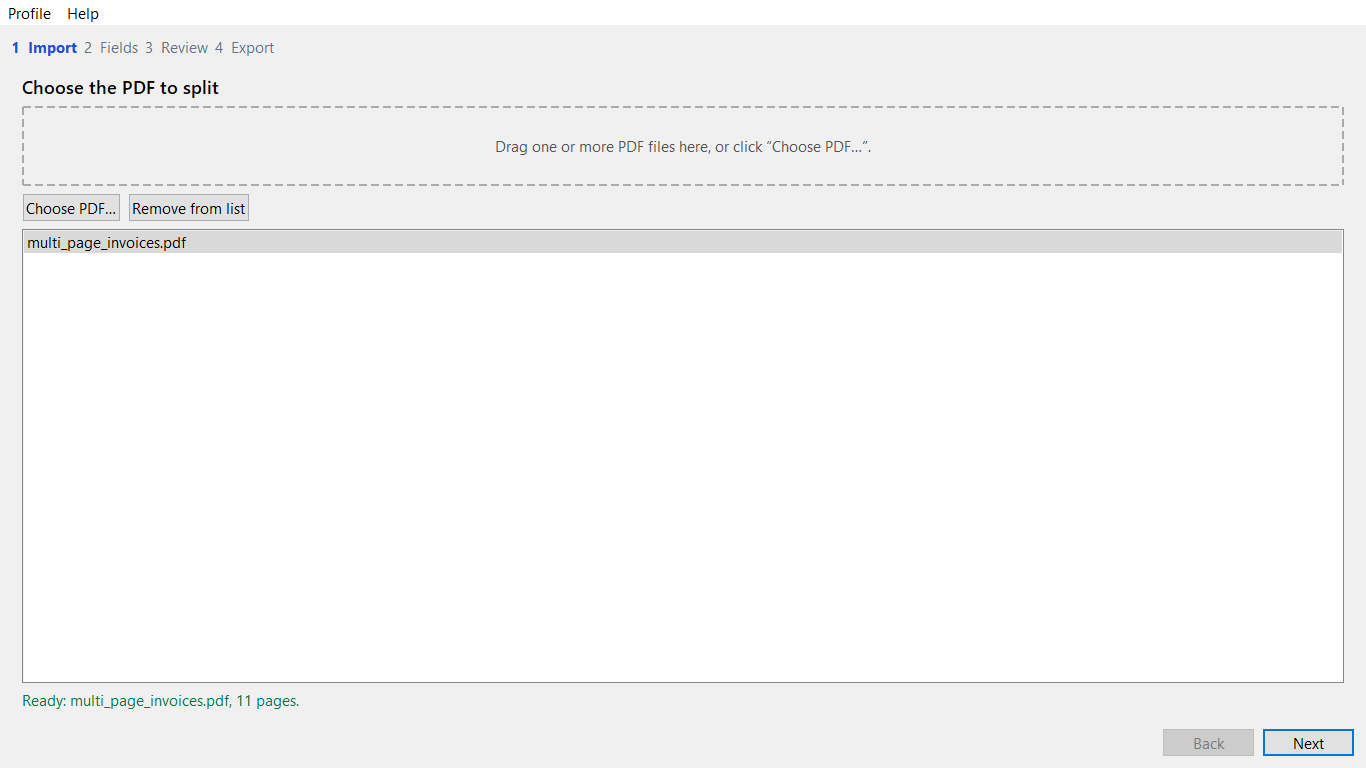
Choose your PDF
Drag it in. Documents with links, bookmarks or forms are fine.
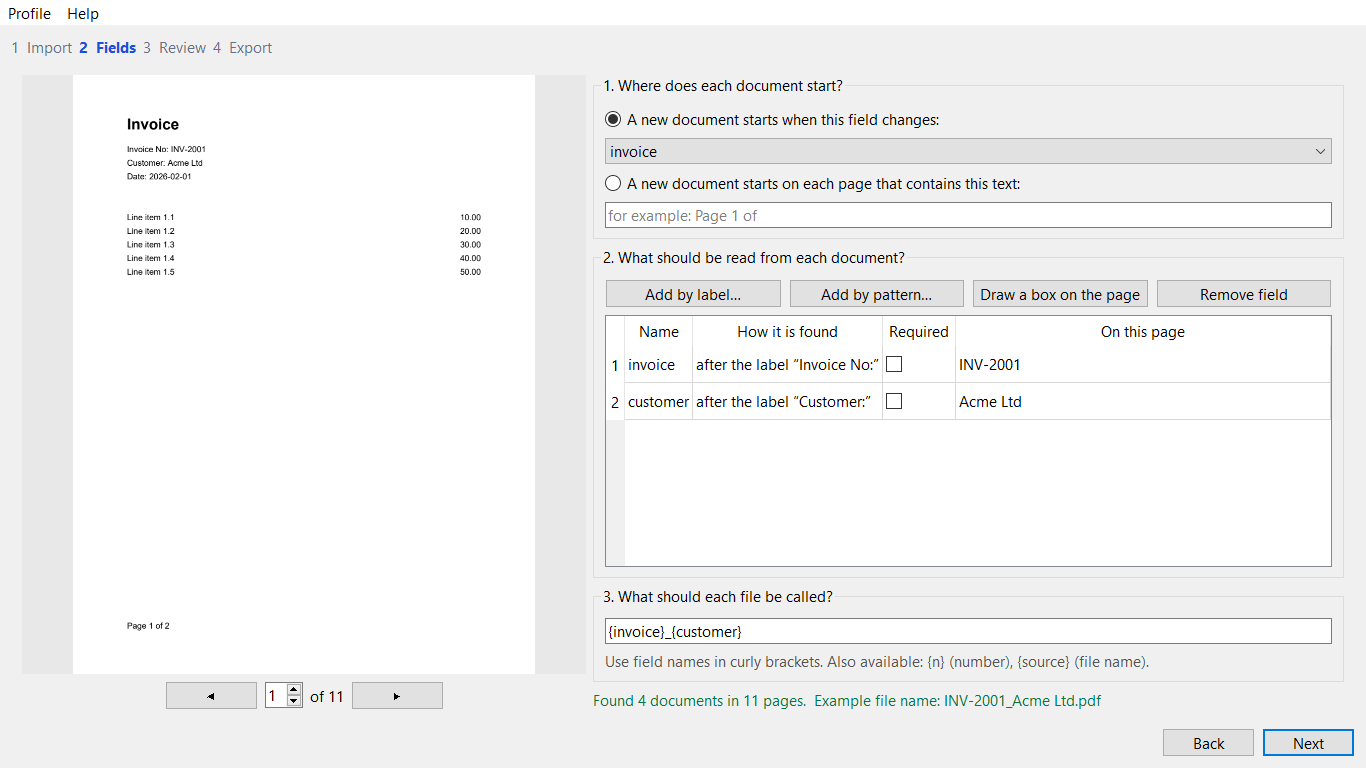
Show it what to read
Type the label before a value (for example "Invoice No:"), give a pattern, or draw a box around the number on a sample page. You see the value it finds, live.
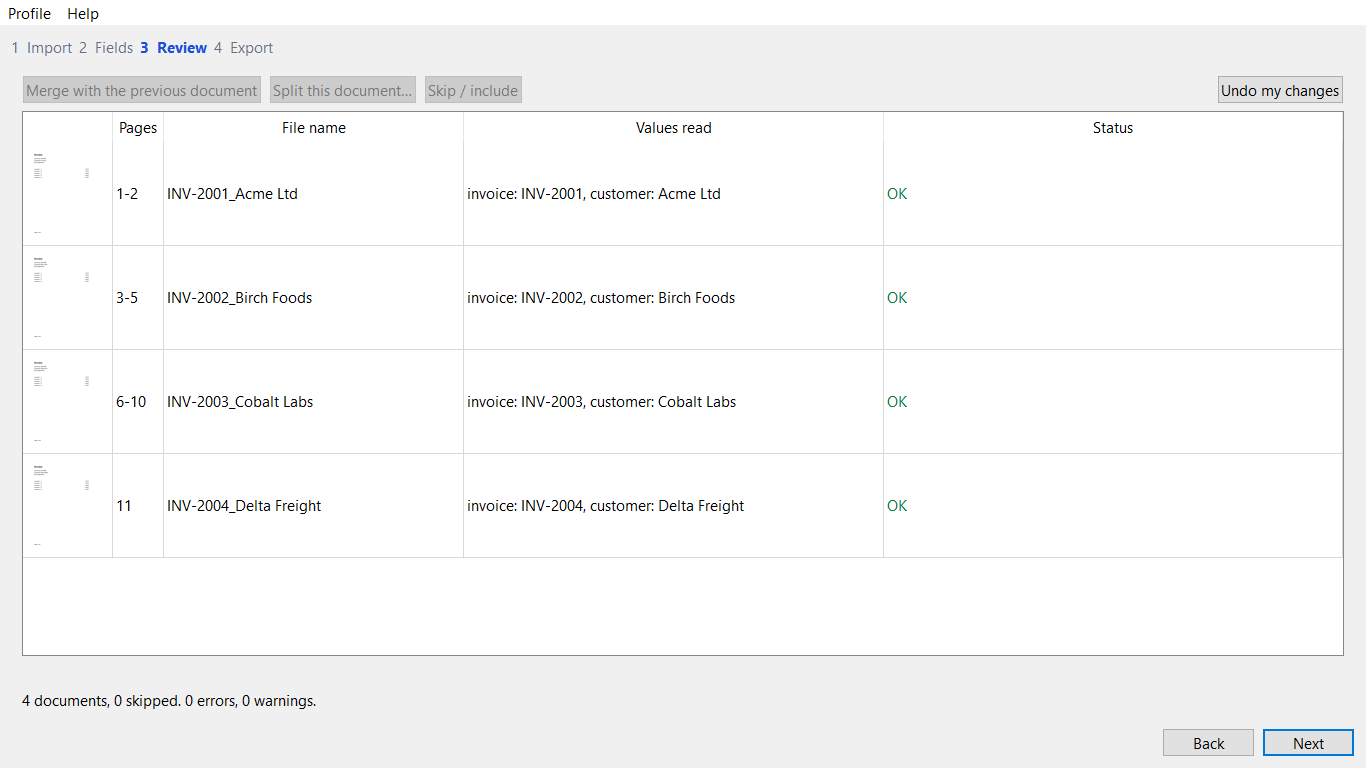
Check the result
A list shows every file with its pages, a thumbnail and its name. Problems such as a missing number or two files with the same name are marked in red. Merge, split, skip or rename with a click.
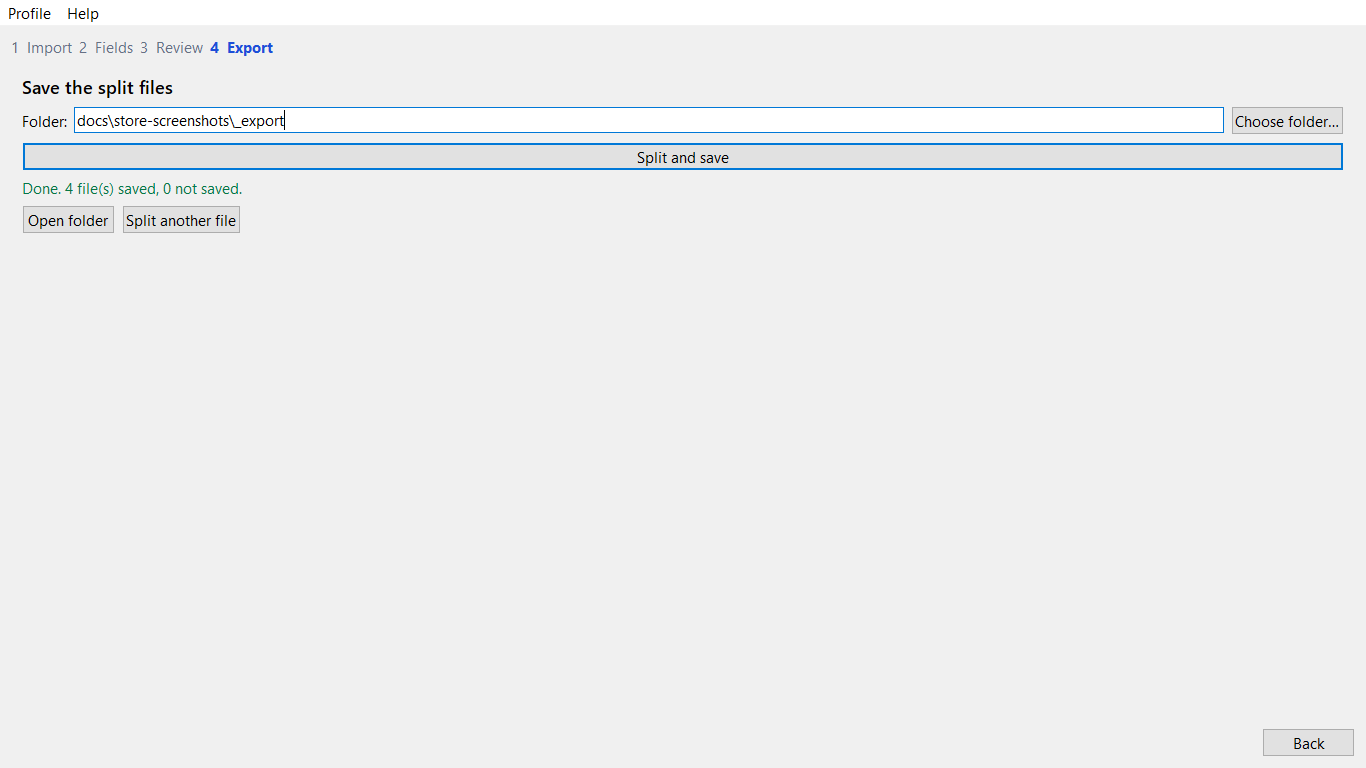
Save
One PDF per document goes into a folder you choose, with a CSV log and a manifest of what was written.
Common problems and how to fix them
How do I split one PDF into separate invoices?
- Why it happens
- Billing and accounting software often prints a whole run of invoices as one PDF. Splitting every page, or every fixed number of pages, only works when every invoice has the same length. As soon as one invoice runs to two pages, every file after it is cut in the wrong place.
- Fix it by hand
- In Adobe Acrobat Pro, go to All tools > Organize pages > Split, which splits by number of pages, by file size or by top-level bookmarks. Free tools split every page or by page ranges you type. For invoices of different lengths, write down where each invoice starts and enter the ranges by hand.
- With Splitmark
- Splitmark finds where each invoice starts by reading its text, such as the point where the invoice number changes, so invoices of any length are split correctly, and you check every result before saving.
How do I name split PDF files from the invoice number?
- Why it happens
- Split tools name their output by page number, such as invoices_1.pdf, invoices_2.pdf. To file or email them, each one needs a real name, and the information is on the page, not in the file.
- Fix it by hand
- Open each file, read the invoice number and customer, and rename the file in File Explorer. For a monthly run of 200 invoices this takes an hour or more, and typos are easy to miss.
- With Splitmark
- Splitmark names every file from text on its pages: the value after a label such as "Invoice No:", a pattern, or a box drawn around the number on a sample page. You can combine values, for example invoice number and customer, and duplicates or missing values are flagged before anything is saved.
How do I split a payroll PDF into one payslip per employee?
- Why it happens
- Payroll systems often produce one PDF for the whole company. Each payslip has to go to one person, payslips can run to more than one page, and the names and amounts are personal data that shouldn't be passed around more than necessary.
- Fix it by hand
- Split the file by page ranges in a PDF editor, then rename each file after the employee it belongs to, checking every page so no one receives someone else's payslip.
- With Splitmark
- Splitmark starts a new file wherever the employee name or number changes, names each file from it, and shows every file with its pages and a thumbnail for checking. Everything runs on your PC, so payslips are never uploaded.
Why can't I split a scanned PDF by text?
- Why it happens
- A scanned PDF is a set of pictures of pages. Tools that split or name files by text need a text layer, and a plain scan doesn't have one.
- Fix it by hand
- Check by pressing Ctrl+F in your PDF reader and searching for a word you can see on the page. If nothing is found, there is no text layer. Run optical character recognition (OCR) first, for example All tools > Scan & OCR in Adobe Acrobat, which adds a searchable text layer, then split the recognised file.
- With Splitmark
- Splitmark reads text-based PDFs, such as those exported from accounting or payroll software. It doesn't do OCR yet, and it tells you clearly when a PDF has no text to read.
Is it safe to upload invoices to an online PDF splitter?
- Why it happens
- Online PDF tools work by uploading your file to their servers. Invoices, statements and payslips contain names, addresses, bank details and amounts, which your clients or employees expect you to protect, and your company's data policy may not allow third-party uploads.
- Fix it by hand
- Read the service's privacy policy and retention period before uploading, or use software that runs on your own computer, such as a desktop PDF editor.
- With Splitmark
- Splitmark runs entirely on your PC. PDFs are never uploaded; the only internet connection is the licence check.
What Splitmark does
- Finds where each document starts, so invoices of different lengths split correctly.
- Names every file from text on its pages: type the label before a value (such as "Invoice No:"), give a pattern, or draw a box on a sample page.
- A review list with every file's pages, a thumbnail and its name. Missing values and duplicate names are flagged before saving.
- Merge, split, skip or rename any document with a click.
- Saves one PDF per document, plus a CSV log and a manifest of what was written.
- Accepts ordinary business PDFs, including ones with links, bookmarks or forms. The original PDF is never changed.
Limits. It reads the text layer of a PDF. Scanned pages (pictures of text) are not supported yet, and the app says so when it meets one.
Questions
- Does Splitmark upload my PDFs?
- No. It runs on your PC, and your PDFs never leave it. The only internet connection is checking your licence key.
- Will it change my original PDF?
- No. The original PDF is never changed, moved or deleted, and existing files are never replaced unless you say so.
- What does the free trial include?
- Every feature, with up to 10 files saved per run.
- Does it work with scanned PDFs?
- Not yet. It reads the text layer of a PDF, so scanned pages need OCR first. The app tells you when it meets a page without text.
- Which Windows versions does it run on?
- Windows 10 (version 1809 or later) and Windows 11, 64-bit. No administrator rights are needed to install it.