 Choreless
Link Migrator for Excel, Word and PowerPoint
Fix broken Excel, Word and PowerPoint links after a server move
When a file server is renamed, retired or moved to SharePoint, every workbook link, hyperlink, linked picture and template path that pointed at the old location breaks at once. Excel's own Workbook Links pane handles one workbook at a time and ignores Word and PowerPoint entirely.
 Link Migratorby Choreless
How it works
Scan (free)
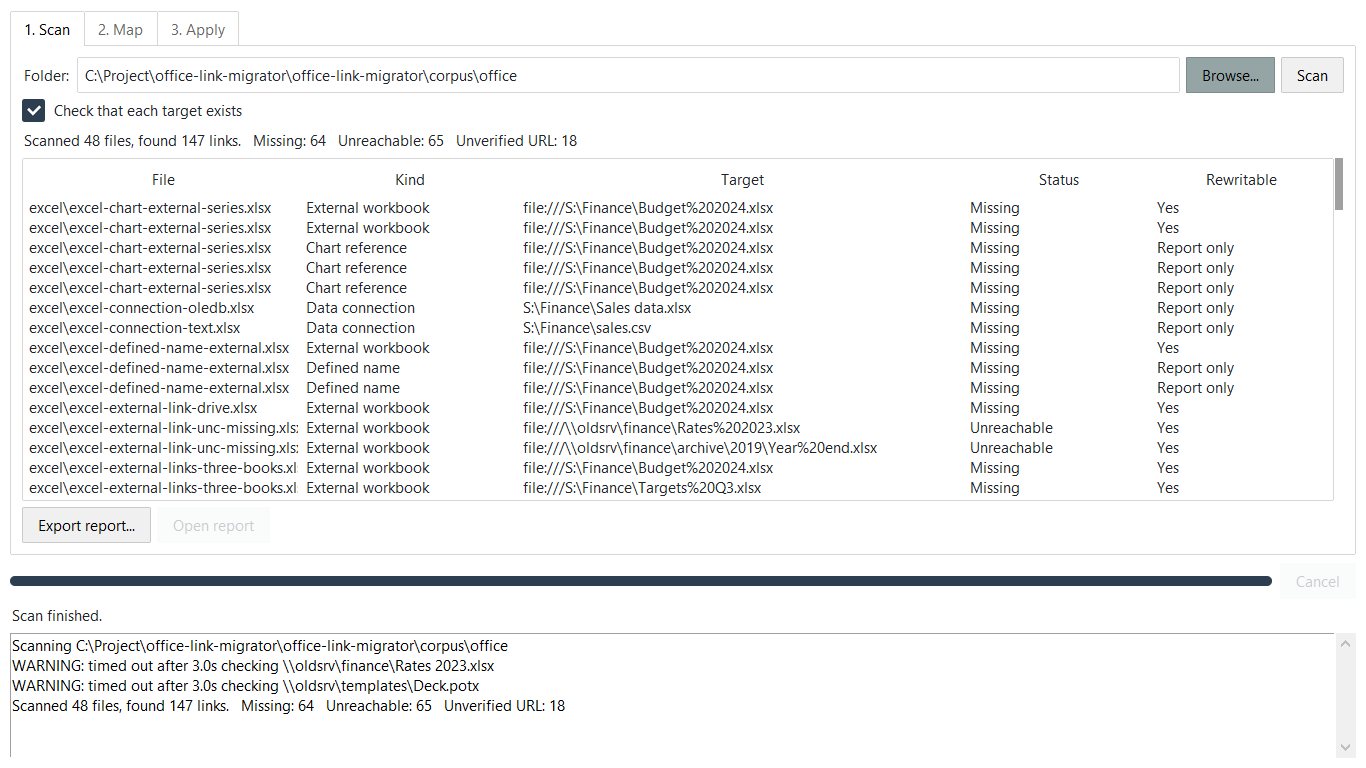
Point it at a folder. Get a report of every external link in every file: where it lives, what it points to, and whether the target exists.
Map
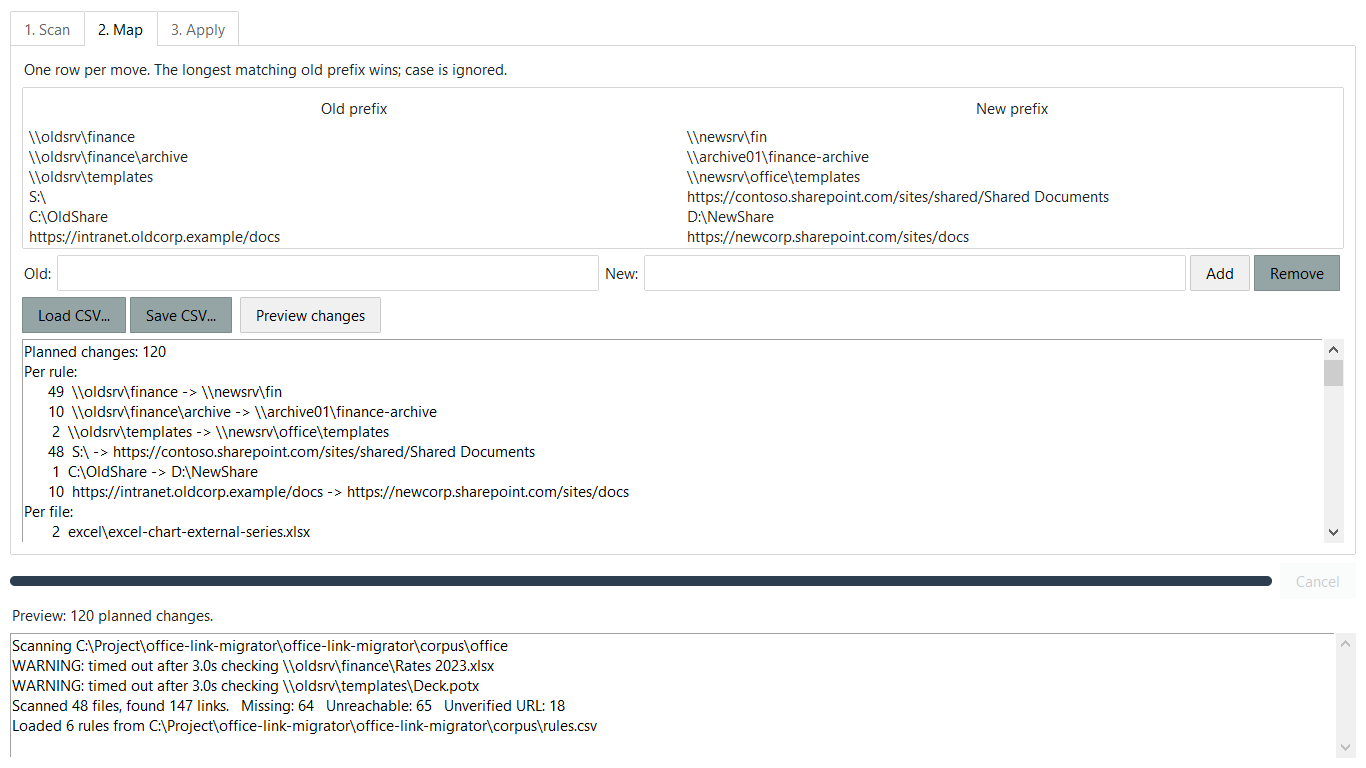
Enter one table: old location to new location. UNC paths, mapped drives and SharePoint addresses all work. Preview the exact change count per rule and per file.
Apply
Corrected copies are written to a separate folder and each one is verified. Swap them in when you are happy.
Common problems and how to fix them
Excel says "We can't update some of the links in your workbook right now"
- Why it happens
- An Excel workbook link stores the full path of the source workbook, such as \\oldsrv\finance\Rates.xlsx or S:\Finance\Rates.xlsx. When that server is retired or the share moves, the stored path points at nothing, so Excel can't refresh the values and shows the warning every time the file opens.
- Fix it by hand
- Open the workbook and go to Data > Queries and Connections > Workbook Links (older versions of Excel have Data > Edit Links in the same place). Next to the old source, choose More Commands (...) > Change source and pick the file in its new location. Changing the source repoints every formula, defined name and chart series that uses it. Repeat for every workbook that links to the moved files.
- With Link Migrator
- Link Migrator scans a whole folder at once, lists every workbook link with its status, and rewrites old paths to new ones from a single mapping table, writing corrected copies you can check before swapping them in.
How do I find every external link in an Excel workbook?
- Why it happens
- The Workbook Links pane (Edit Links in older versions) shows which workbooks a file depends on, but not where each link is used. References can sit in cell formulas, defined names, shapes and text boxes, chart titles and chart series, and Microsoft's own documentation says: "There is no automatic way to find all workbook links in a workbook."
- Fix it by hand
- Press Ctrl+F, click Options, type .xl in Find what, set Within to Workbook and Look in to Formulas, and click Find All: every formula that points at another workbook is listed. Then check Formulas > Name Manager for names whose Refers To mentions another file, press Ctrl+G > Special > Objects to step through shapes and text boxes, and click each chart title and chart series to read its formula in the formula bar.
- With Link Migrator
- Link Migrator reads the file format directly and reports every link it finds across a whole folder, including defined names and chart series, with the file, the kind of link, the target and whether that target still exists.
Word documents open slowly after a file server move
- Why it happens
- Many Word documents remember the template they were created from, stored as a full network path. When that server is gone, Word tries to reach it every time the document opens and waits for the network to time out before showing the file.
- Fix it by hand
- Open the document (press Esc if Word shows "Contacting" the old server), go to File > Options > Add-ins, set Manage to Templates and click Go. The same dialog is on the Developer tab as Document Template, if that tab is turned on. Click Attach and choose the template in its new location, or Normal.dotm. Save, and repeat for every affected document.
- With Link Migrator
- Link Migrator lists the attached template of every Word document in a folder and rewrites the old server path to the new one along with every other link, so the documents open at normal speed again.
Hyperlinks in Word, Excel and PowerPoint still point to the old server
- Why it happens
- A hyperlink to a file on a share stores that file's path. Moving the share doesn't update hyperlinks, so clicking them opens an error instead of the document.
- Fix it by hand
- Right-click each hyperlink and choose Edit Link to type the new path. In Word there is a shortcut: press Alt+F9 to show field codes, use Find and Replace to change the old server name inside the HYPERLINK fields, then press Ctrl+A and F9 to update the fields (skip this and the links keep pointing at the old place) and Alt+F9 to hide the codes. Excel's and PowerPoint's Find and Replace don't search hyperlink addresses, so without a macro their links are fixed one at a time.
- With Link Migrator
- Link Migrator finds hyperlinks in cells, document bodies, headers, footers, footnotes, slides, layouts and notes, and rewrites them with the same mapping table as every other link.
Links broke after moving files from a file share to SharePoint
- Why it happens
- Files on a share are linked by paths like S:\Finance or \\server\share. After a migration the same files live at web addresses such as https://company.sharepoint.com/sites/Finance/Shared Documents, so every old path is wrong even though the files still exist.
- Fix it by hand
- Open each file from its new location and repoint its links one by one: Change source in Excel's Workbook Links pane, Edit Link for each hyperlink, and in Word and PowerPoint, File > Info > Edit Links to Files > Change Source for linked pictures and objects. It works for a handful of files and becomes days of work across a department.
- With Link Migrator
- Link Migrator maps a drive letter or share path to the SharePoint address in one rule and previews how many links each rule will change before anything is written.
What Link Migrator does
- Scans whole folders of .xlsx, .xlsm, .docx, .docm, .pptx and .pptm files and lists every external link, including the ones hidden in defined names and charts.
- Checks whether each link's target still exists, with a short timeout so a dead server never hangs the scan.
- One mapping table, old location to new: UNC paths, mapped drives and SharePoint addresses.
- Previews the exact number of changes per rule and per file before anything is written.
- Writes corrected copies to a separate folder and verifies each one. Originals are not touched.
- A command line with exit codes for RMM tools and batch jobs.
Limits. Legacy .xls, .doc and .ppt files and password-protected files are listed as skipped and left alone.
Questions
- Do I need Microsoft Office installed?
- No. Link Migrator reads and writes the Office file formats directly, so it runs on a PC without Office.
- Does it change my original files?
- Not by default. Corrected copies go to a separate folder and each one is verified. An optional in-place mode writes a backup ZIP first.
- What is free?
- Scanning folders, seeing every result on screen, previewing changes and exporting a report of the first 200 links are free forever. Applying changes needs a licence.
- Which files does it handle?
- .xlsx, .xlsm, .docx, .docm, .pptx and .pptm. Legacy .xls, .doc and .ppt files and password-protected files are listed as skipped and left alone.
- Does it upload my files anywhere?
- No. Files are processed on your PC. The only internet connection is activating and occasionally re-checking the licence.
Link Migrator is not affiliated with Microsoft. Microsoft, Excel, Word, PowerPoint and SharePoint are trademarks of the Microsoft group of companies.